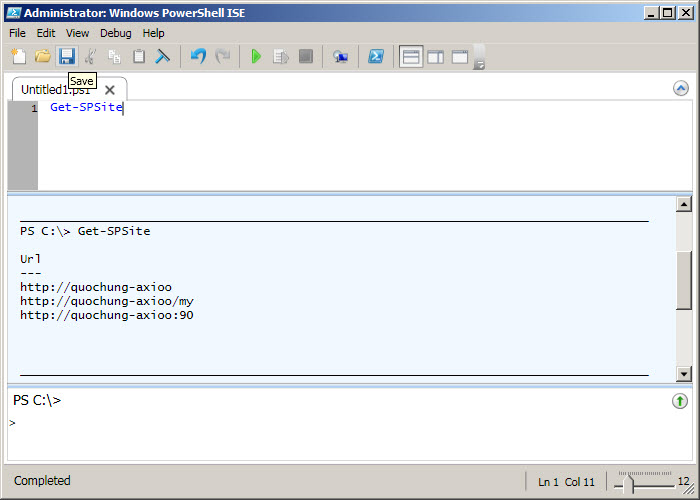
Open Windows PowerShell ISE and paste this segment code to here then click Run Script
$web = get-spweb http://quochung-axioo:90
$web.Lists.Add(“PowerShellCustomList”,”Create SP List by Power Shell”,$web.ListTemplates["Custom List"])
$list = $web.Lists["PowerShellCustomList"]
$list.Fields.Add("LastName","Text","DO")
$list.Fields.Add("FirstName","Text","QuocHung")
$list.Fields.Add("Age","Number",25)
Run script succeeded
Open your sharepoint site and see your list was created
Edit view as follows:
Result as:
On ISE, new file .ps1 and paste this segment code to here then click run script
$spAssignment = Start-SPAssignment
$mylist = (Get-SPWeb -identity http://quochung-axioo:90 -AssignmentCollection $spAssignment).Lists["PowerShellCustomList"]
$newItem = $mylist.Items.Add()
$newItem["Title"] = “Added by Powershell”
$newItem["LastName"] = “QuocHung”
$newItem["FirstName"] = “Do”
$newItem["Age"] = 25
$newItem.Update()
Stop-SPAssignment $spAssignment
Go back your sharepoint list and see Item is added
Continue, New .PS1 and paste this segment code to here then click run script
$SPAssignment = Start-SPAssignment
$SPWeb = Get-SPWeb http://quochung-axioo:90 -AssignmentCollection $spAssignment
$SPList = $SPWeb.Lists["PowerShellCustomList"]
$SPItem = $SPList.GetItemById("1")
$SPItem["Title"] = "Edited by Powershell"
$SPItem.Update()
Stop-SPAssignment $SPAssignment
Go back your sharepoint list and see Item is Edited
Continue, New .PS1 and paste this segment code to here then click run script
$spList = Get-SPList -url "http://quochung-axioo:90/Lists/PowerShellCustomList"
$spListItem = $spList.GetItemById(1)
$spListItem.Delete()
Go back your sharepoint list and see Item is Deleted